You don’t need expensive software to learn how to draw-you need the right place to make mistakes.
The best free drawing apps for beginners remove the pressure: no costly subscriptions, no complicated setup, and no excuse to avoid daily practice.
Whether you’re sketching on a phone, tablet, or laptop, the right app can help you build line control, experiment with brushes, and develop confidence one drawing at a time.
This guide highlights beginner-friendly free drawing apps that are actually useful for practice-not just impressive-looking tools you’ll abandon after ten minutes.
What Makes the Best Free Drawing Apps Beginner-Friendly for Practice
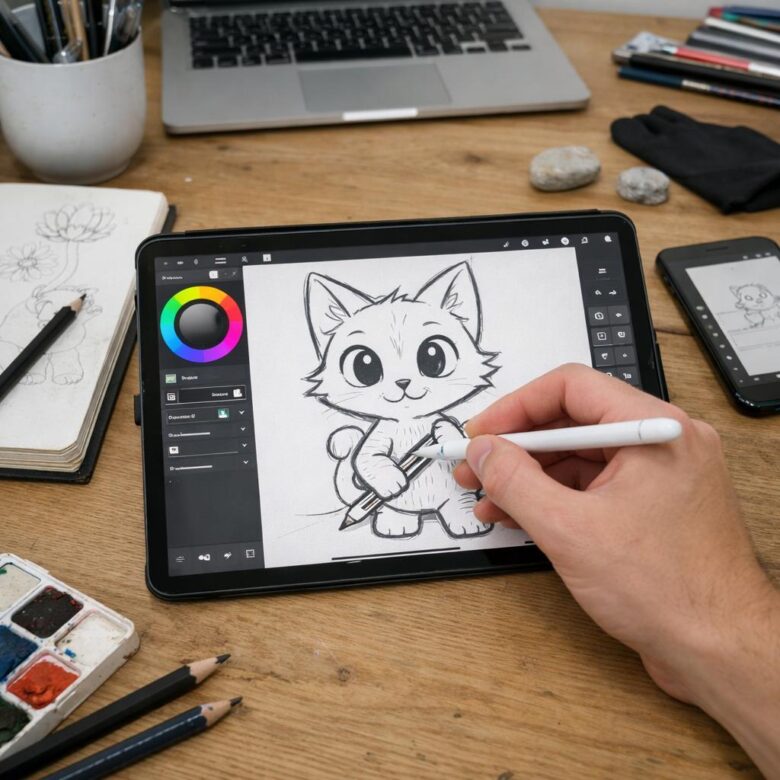
The best free drawing apps for beginners are not just “free”; they make daily practice easier without forcing you to fight the interface. A good beginner app should have clean brush controls, simple layers, pressure sensitivity support, and an easy way to undo mistakes. If you are using an iPad, Android tablet, or budget drawing tablet, the app should feel responsive enough that your lines do not lag behind your hand.
For practice, look for apps that help you build habits, not just create finished artwork. Sketchbook, for example, is beginner-friendly because the pencil, ink, and marker tools are easy to find, and you can start sketching without setting up a complicated canvas. That matters when you only have 20 minutes to practice gesture drawing, shading, or character poses after school or work.
- Simple tools: Brushes, erasers, layers, and color pickers should be easy to access.
- Device support: The app should work well with Apple Pencil, Samsung S Pen, or affordable stylus options.
- Export options: Saving as PNG, JPG, or PSD is useful if you later move to paid digital art software.
One real-world tip: beginners often improve faster with an app that has fewer distractions. A packed professional interface may look impressive, but it can slow practice. Choose a free drawing app that lets you sketch quickly, review your work, and repeat the exercise without extra setup or hidden upgrade costs.
How to Practice Drawing Daily with Free Apps: Tools, Exercises, and Workflow
A good daily drawing routine is less about talent and more about reducing friction. Choose one free drawing app, such as Krita, ibis Paint X, or MediBang Paint, and keep your brushes, canvas size, and reference folder ready so you are not wasting practice time adjusting settings.
Start with a simple 30-minute workflow: 5 minutes of warm-up lines, 10 minutes of shape studies, 10 minutes copying a reference, and 5 minutes reviewing mistakes. If you use an iPad, Android tablet, or a budget drawing tablet, save your files in cloud storage so you can compare progress across days.
- Line control: draw straight lines, curves, circles, and boxes without using undo too often.
- Form practice: turn basic shapes into objects like cups, shoes, phones, or furniture.
- Reference study: sketch from photos, product images, or real objects on your desk.
For example, a beginner practicing character art might use ibis Paint X on a phone during lunch breaks, then continue the same sketch at home on a tablet with a stylus. This keeps the habit realistic, especially if you cannot afford premium digital art software or paid online drawing courses yet.
One practical tip from experience: name your files by date and topic, such as “2025-gesture-hands.” It sounds small, but organized files make it easier to spot weak areas, build a digital art portfolio, and decide whether future paid tools or a better drawing tablet are actually worth the cost.
Common Mistakes Beginners Make with Free Drawing Apps and How to Improve Faster
One of the biggest mistakes beginners make is treating a free drawing app like a magic shortcut. Apps such as Krita, ibisPaint X, and Autodesk SketchBook are powerful, but improvement still comes from focused practice, not downloading more brushes or switching tools every week.
A common real-world example: a beginner buys a budget drawing tablet, installs several digital art apps, then spends most of the time testing pen settings instead of drawing basic shapes, hands, faces, or shading studies. A better approach is to choose one app, set up a simple brush, and practice the same skill for 20-30 minutes daily.
- Using too many layers: Layers help, but beginners often hide mistakes instead of fixing structure. Try sketching on one layer first, then use extra layers for color, lighting, and clean line art.
- Ignoring pressure sensitivity: If you use a stylus or drawing tablet, adjust pen pressure settings early. Poor calibration can make lines feel stiff and slow your progress.
- Skipping references: Drawing from memory too soon leads to flat results. Use legal image references, pose tools, or your own photos to study real forms.
Another mistake is exporting artwork only at low resolution. Even if you are practicing for fun, learn basic canvas size, file formats, and backup habits; these skills matter later if you create prints, portfolio pieces, commissions, or online content.
To improve faster, keep a small “practice library” inside your app: one folder for warmups, one for studies, and one for finished pieces. This makes progress visible and helps you spot patterns, like weak proportions or inconsistent line weight, without paying for premium digital art software too early.
Wrapping Up: Best Free Drawing Apps for Beginners Who Want to Practice Insights
The best free drawing app is the one that removes friction from daily practice. If you are just starting, choose an app with a clean interface, responsive brushes, and enough tools to study lines, shapes, shading, and color without feeling overwhelmed. Do not chase the most advanced option first; pick one that makes it easy to draw often and review your progress.
Try two or three apps for a week, then keep the one that feels natural on your device. Consistent practice will improve your skills faster than switching tools endlessly.