Your next digital art upgrade could either unlock your workflow-or quietly waste your money.
Choosing between a drawing tablet and an iPad isn’t just about specs; it’s about how you sketch, paint, edit, travel, and earn from your art.
A dedicated drawing tablet can offer pro-level precision, larger work areas, and deep desktop software integration. An iPad gives you portability, instant setup, and powerful apps like Procreate in one sleek device.
In this guide, we’ll break down the real differences so you can decide which tool is better for your style, budget, and creative goals.
Drawing Tablet vs iPad: Core Differences in Workflow, Hardware, and Creative Control
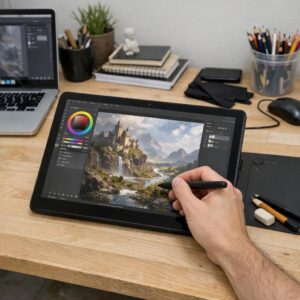
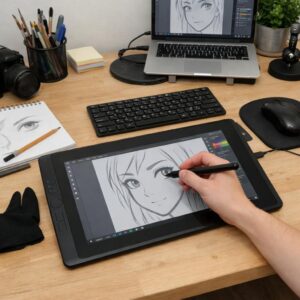
A drawing tablet usually fits better into a professional studio workflow, especially if you already use desktop software like Adobe Photoshop, Clip Studio Paint, Blender, or Illustrator. Pen displays and graphics tablets connect to a computer, giving you access to stronger processors, larger monitors, full file management, advanced brush engines, and color-calibrated screens for client work, print design, concept art, and animation.
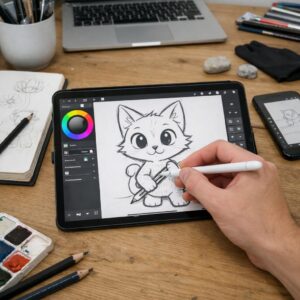
The iPad is more self-contained. You can sketch, paint, edit, export, and share from one device, which is ideal for travel, café work, online commissions, or quick social media content. For example, an illustrator can rough out character ideas in Procreate on an iPad during a train ride, then finish the final layered PSD later on a desktop setup.
- Workflow: Drawing tablets are stronger for multi-app production pipelines; iPads are faster for portable sketch-to-post creation.
- Hardware: Tablets rely on your PC or Mac performance; iPads have fixed storage, RAM, screen size, and upgrade limits.
- Creative control: Desktop tablets offer more customization, shortcuts, drivers, and display options; iPads offer simplicity and fewer setup problems.
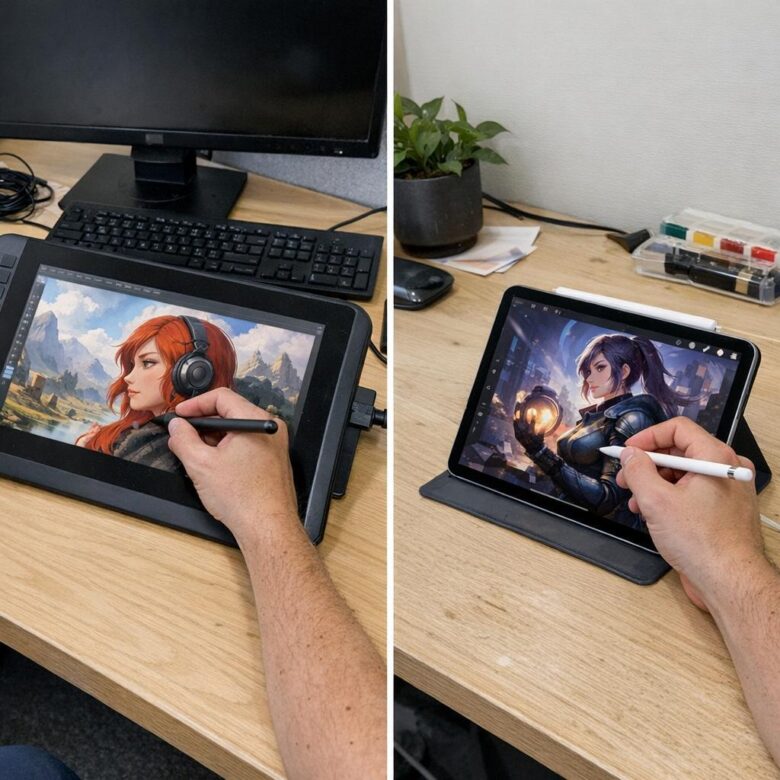
In real use, the difference often comes down to pressure versus convenience. A Wacom or Huion tablet with a keyboard shortcut setup can feel faster for long commercial projects, while an iPad Pro with Apple Pencil feels more natural for loose drawing and client revisions on the go. Neither is automatically “better”; the smarter choice depends on your software, budget, file requirements, and how often you create away from your desk.
How to Choose Between a Drawing Tablet and an iPad Based on Your Art Style, Software, and Budget
Start with your art style, not the device hype. If you mainly sketch, paint portraits, create stickers, or post social media art, an iPad with Apple Pencil and Procreate is fast, portable, and easy to learn. If you do detailed comic pages, concept art, animation, or client work that depends on desktop software, a drawing tablet connected to a computer usually gives you more control.
Software matters just as much as hardware. Artists using Adobe Photoshop, Clip Studio Paint EX, Blender, or professional color-managed workflows may benefit from a Wacom, Huion, or XP-Pen display tablet paired with a powerful laptop or desktop. In real studio use, I often see illustrators sketch thumbnails on an iPad, then finish large layered files on a pen display because file handling, shortcuts, and screen space are better.
- Choose an iPad if you want portability, simple setup, note-taking, casual commissions, or all-in-one digital art tools.
- Choose a drawing tablet if you need desktop-grade software, larger canvases, keyboard shortcuts, or a lower long-term upgrade cost.
- Choose by budget: entry-level screenless tablets are cheapest, while iPad Pro and premium pen displays cost much more once accessories are included.
For beginners, the best value is often a budget drawing tablet if you already own a decent computer. For traveling artists, students, and creators who draw on the couch or in cafés, the iPad is hard to beat. For professional illustration services, game art, and print-ready client projects, a dedicated drawing tablet can be the smarter investment.
Common Mistakes Artists Make When Buying a Drawing Tablet or iPad for Digital Art
One of the biggest mistakes is choosing a device based only on price or hype. A cheap drawing tablet can be great for beginners, but if it has poor pen pressure, driver issues, or a tiny active area, it may slow down your workflow in apps like Photoshop, Clip Studio Paint, or Procreate.
Another common mistake is ignoring the total cost. An iPad for digital art often needs an Apple Pencil, a screen protector, cloud storage, and sometimes paid creative apps, while a pen display tablet may require a powerful laptop or desktop computer. The real cost is the full setup, not just the device.
- Buying too small: A compact tablet is portable, but detailed illustration, concept art, and linework feel cramped on very small surfaces.
- Forgetting software needs: Procreate is iPad-only, while many professional animation, 3D, and design tools work better on Windows or macOS.
- Overpaying for features: Beginners may not need a premium 4K pen display if they are still learning basic digital painting techniques.
A real-world example: an artist who mostly sketches characters on the couch may get more value from an iPad Air with Apple Pencil than a large desktop pen display. But a freelancer doing client work in Adobe Illustrator, Photoshop, and file-heavy projects may benefit more from a Wacom, Huion, or XP-Pen tablet connected to a reliable computer.
Before buying, test the pen feel, check app compatibility, and think about where you actually create. Comfort matters more than specs on paper.
Closing Recommendations
The better choice depends on how and where you create. Choose an iPad if you value portability, an all-in-one setup, and the freedom to sketch, paint, and edit anywhere. Choose a drawing tablet if you want deeper desktop software, a larger workspace, better upgrade options, or a more cost-effective professional setup.
For beginners and mobile artists, the iPad is often the easier, more flexible pick. For studio work, complex illustration, animation, or long-term professional use, a dedicated drawing tablet may offer more control. The smartest decision is the one that fits your workflow, not the one with the most features.